Adding and editing cards
This page guides you through what cards are on a Workflowy board and shows you how to add or edit them.
What is a card?
A card represents a single bullet or sub-list on your board. Cards let you:
-
See items as movable tiles in columns
-
Edit content directly without switching back to list view
-
Track your progress by renaming, adding notes, or changing details
You can use cards for tasks, ideas, meeting notes, or any other items you want to organize.
Adding a card to your board
To add a new card to your board:
-
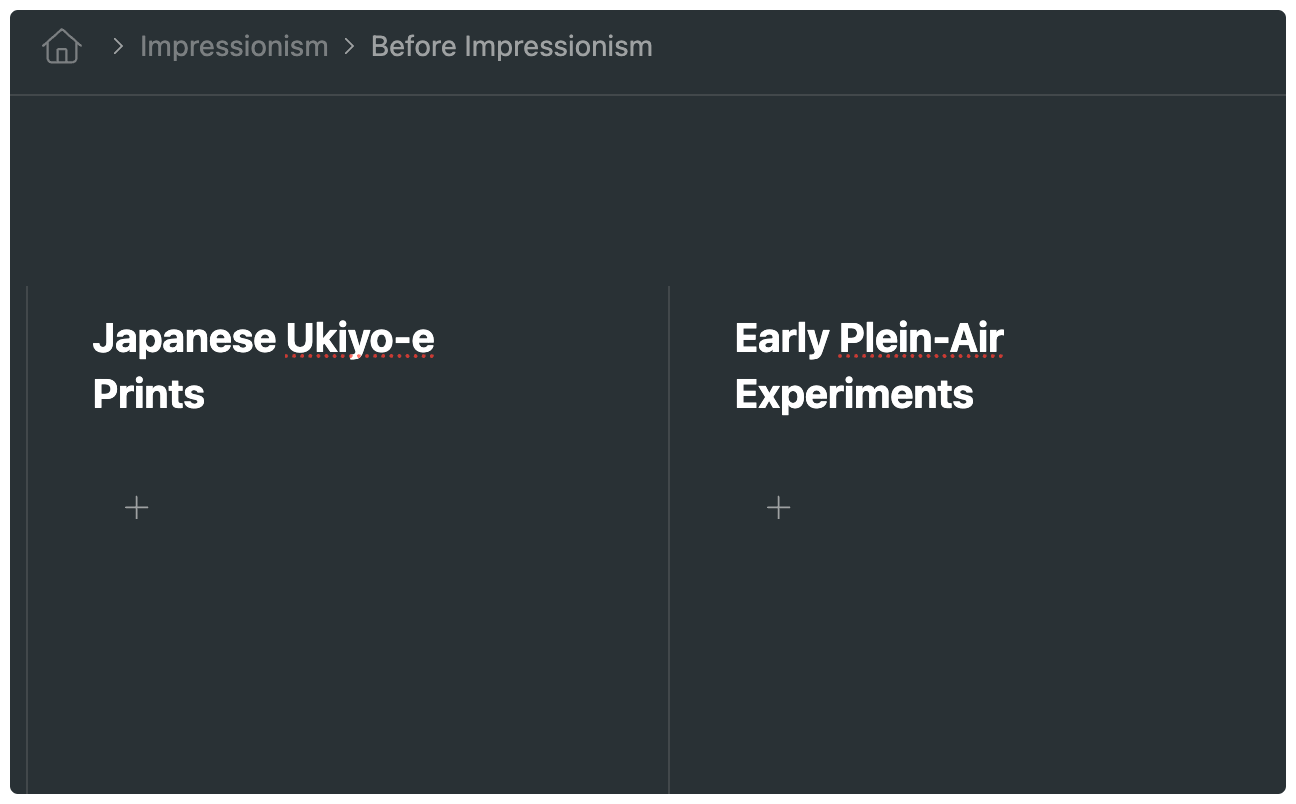
Navigate to the column where you want the card.
-
Click + icon at the bottom of that column.

A new card appears.
-
Type your card title (for example, “Time Period”) and press Enter.
Your card is added to your column.
Tip: Cards can hold text, images, links, tables, and more. By adding cards with varying information, you populate your board.
Editing a card
In Workflowy’s Boards view, each “card” is really just a bullet (or nested bullet) that you’re treating like a Kanban card. “Editing” a card simply means opening that bullet and changing whatever you need—its title, its content or description, and any of the custom fields you’ve added. Concretely, when you edit a card you can:
-
Change the title
Click the card’s header to rename it. That’s the equivalent of editing your bullet’s text. -
Update the description or notes
Expand the card to reveal the body of the bullet (any nested bullets) and add, delete, or rearrange lines of text or sub-bullets. -
Edit metadata
If you’ve added custom card-properties—due dates, tags, dropdown selects, checkboxes, numeric fields—you can click into each field to pick a new value or type in fresh data. -
Reassign or reorder
You can drag the card to a different column or even move it within the same column; that’s also “editing” its status or priority. -
Add collaborators or comments
If you’re on a shared board, you can @mention teammates, leave comments, or resolve threads—all from the card’s detail view.
Basically, “editing a card” in Workflowy is exactly the same as editing the underlying bullet and any fields you’ve associated with it—you just do it through the Board UI instead of in the free-form list.
To edit the existing text in a card:
-
On your board, hover your mouse over the card you want to edit.
-
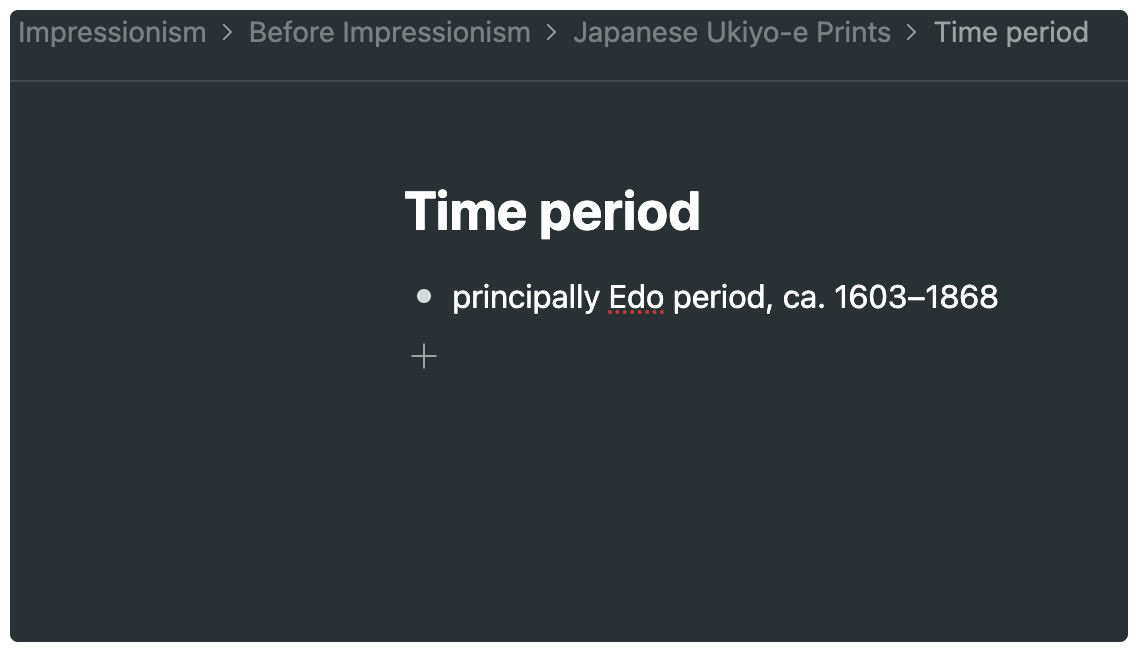
Select the bullet icon.
Your card opens into its expanded view.
-
Select your text.
An editing panel appears.
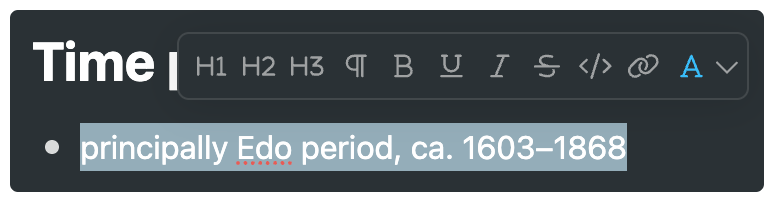
Select your desired options.
The changes appear in your card.