Exporting Workflowy Content
Exporting lets you back up or share your Workflowy data.
To export:
-
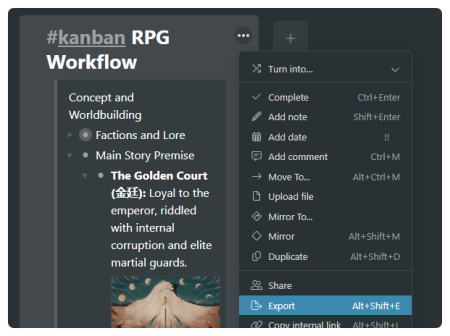
Hover over the bullet or list you want to export.
-
Click the three-dot menu (•••) on the right.
-
Select “Export”.
-
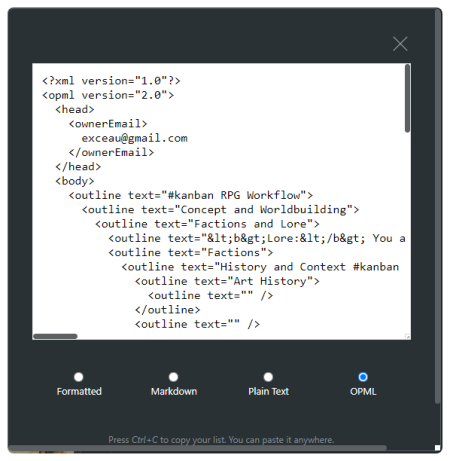
Choose from:
-
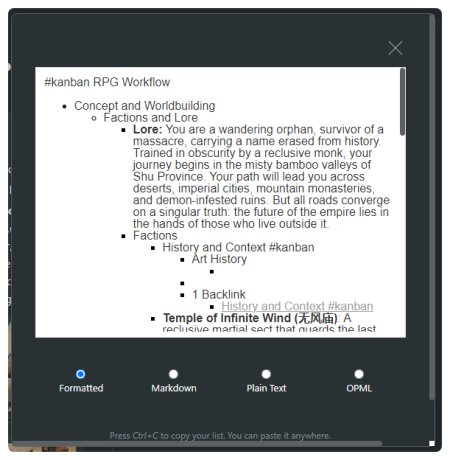
Formatted (retains hierarchy and styling)
-
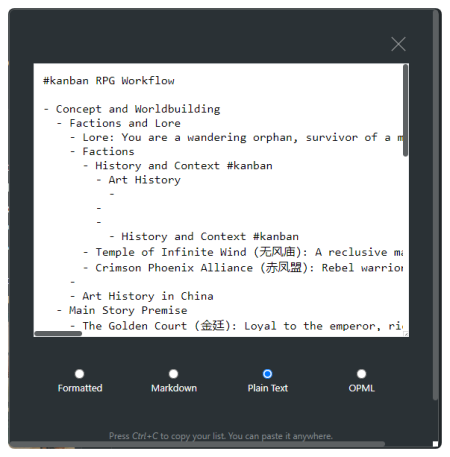
Plain Text (simple text list)
-
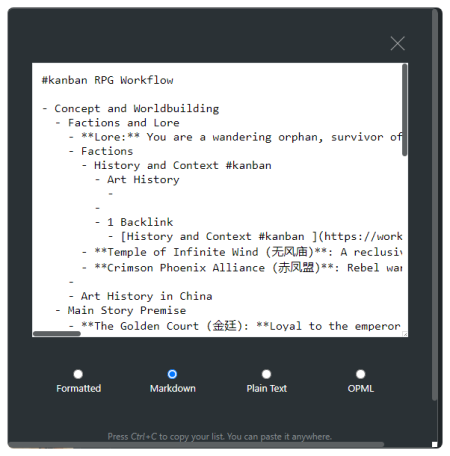
Markdown (simple text list)
-
OPML (xml list)
-
You can copy the exported content to your clipboard or paste it into other tools like email, word processors, or note apps.
Need more information?
Contact usWorkflowyUser Guide1.22025info@workflowy.com