Creating a board
This page guides you through what a board is in Workflowy and shows you how to create one. You’ll learn when to use boards and the steps to set one up.
What is a board?
A board in Workflowy turns any list into a visual workspace of cards. Each card represents a bullet or sub-list. Boards help you:
-
Organize tasks by moving cards through custom columns (for example, To Do → In Progress → Done).
-
Visualize your progress without collapsing and expanding nested bullets.
-
Collaborate by sharing a board link with teammates.
Boards work like virtual kanban or white-board tools, but stay fully inside your Workflowy outline. You don’t have to leave your document or open extra apps.
Creating a board
To turn your list into a board:
-
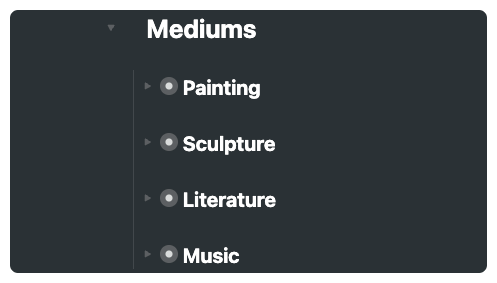
Select the list you want to turn into a board.
-
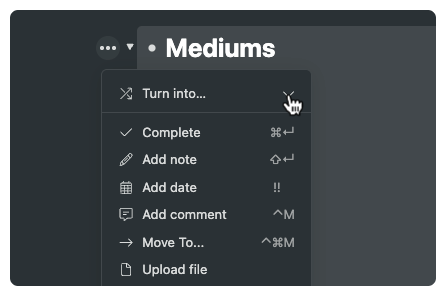
Click the ••• menu at the top right of that list’s heading.
A dropdown menu appears.
-
Select Turn into > Board.
Workflowy converts each child bullet into a card in a single default column.
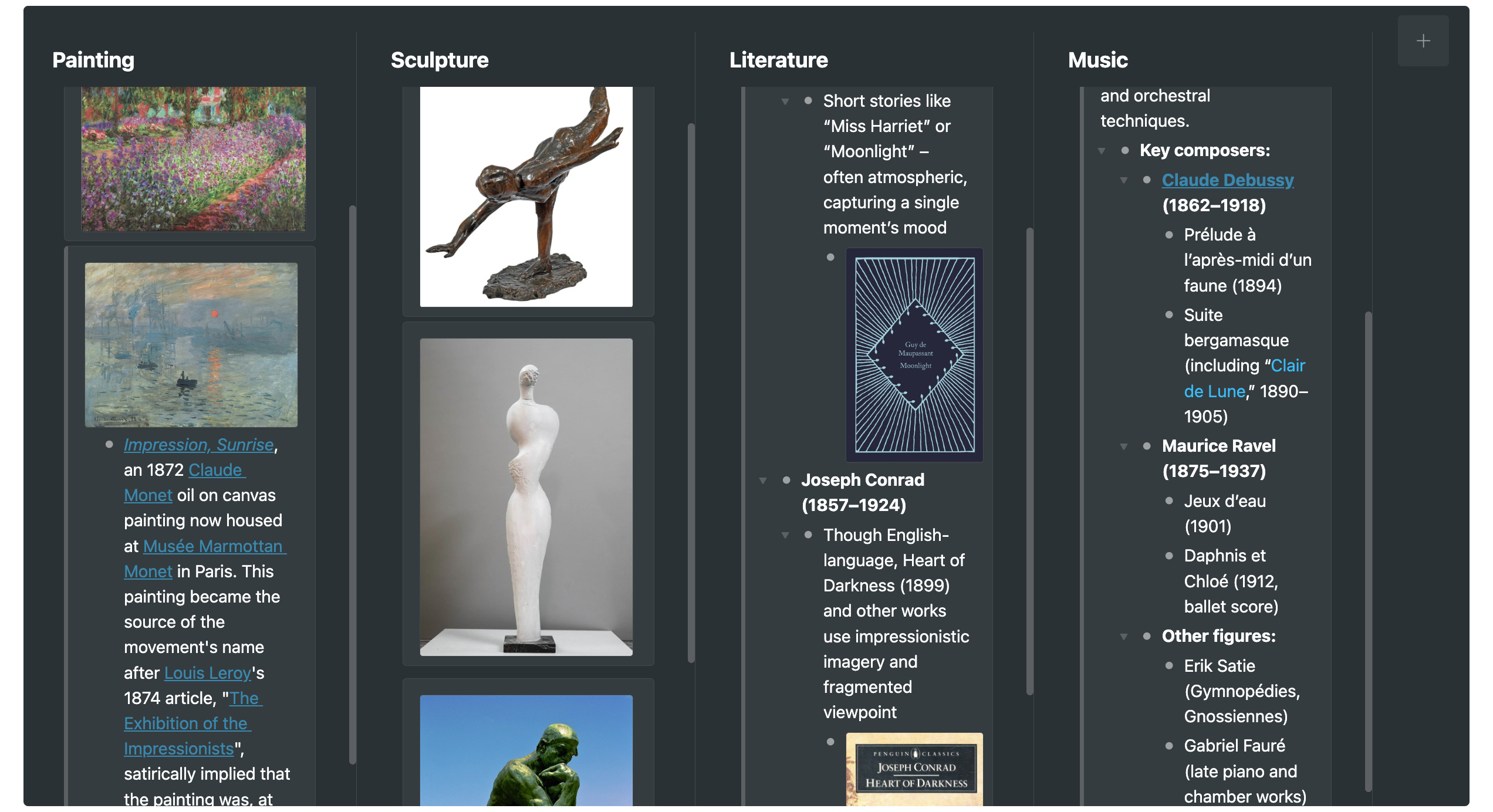
To add a column to your board:
-
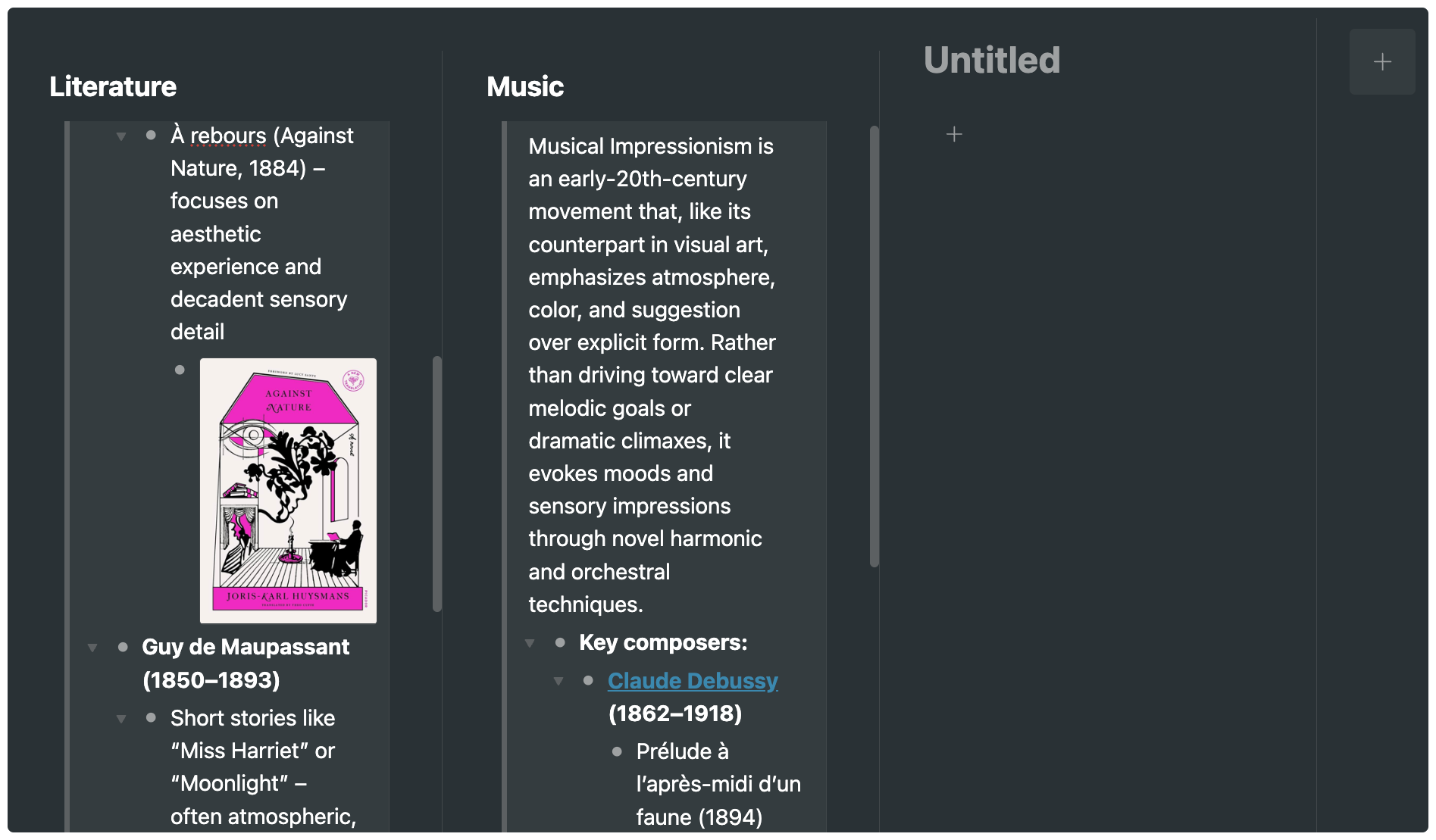
Click the + icon at the right edge.

A new board is added.
Tip: You can switch back to list view by clicking View as list in the same ••• menu.